User Guide
Everything you need to get the most out of SubSense. From first setup to advanced features, this guide covers it all.
1. Getting Started
Download & Install
Download SubSense for free from the Google Play Store. No account creation is required — just install and open.
Grant Notification Access
On first launch, SubSense will ask for Notification Access permission. This allows the app to read your notification titles and detect subscription renewals automatically.
To grant access: Android Settings > Apps > Special access > Notification access > enable SubSense.
This is optional.SubSense works fully without it — you can manage all subscriptions through manual entry.
Battery Optimization (Important for some devices)
On Xiaomi, Oppo, Vivo, and other Chinese OEM devices, aggressive battery optimization can prevent SubSense from detecting notifications in the background. We recommend:
- Disable battery optimization for SubSense in your device settings
- Enable "Auto-start" for SubSense (on Xiaomi/MIUI)
- Lock SubSense in the recent apps tray to prevent it from being killed
2. Your Dashboard

The dashboard is your home base. At a glance, you can see:
- Monthly total spend — how much you're paying this month
- Upcoming renewals — your next 3 renewals with countdown timers
- Category breakdown — spending by category (Entertainment, Work, Health, Shopping)
- Annual projection — estimated yearly subscription cost
3. AI-Powered Auto-Detection
SubSense uses AI-powered pattern matching combined with Android's NotificationListenerService to automatically detect subscription renewals from your push notifications — all processed on-device.
How the AI detection works
- When you receive a renewal notification (e.g., "Your Netflix subscription has been renewed"), SubSense's AI engine reads the notification title
- It runs pattern matching against 550+ known service patterns with confidence scoring (High / Medium / Low)
- If a match is found, SubSense creates a suggestion for you to review
- You confirm or reject the suggestion — nothing is added without your approval
- The AI learns from rejected false positives to improve future detection
Detection coverage
SubSense achieves approximately 65% automated detection coverage. Many services send billing confirmations via email rather than push notifications, so some subscriptions will need to be added manually. The app is honest about this during onboarding.
4. Adding Subscriptions Manually

Tap the + button on the dashboard or subscription list to add a subscription manually:
- Search or type — autocomplete suggests from 550+ known services
- Set the amount — in any of 22 supported currencies
- Choose billing cycle — monthly, quarterly, semi-annual, or annual
- Pick a category — Entertainment, Work, Health, Shopping, or Other
- Set next renewal date
- Mark as free trial (optional) — with trial end date
- Tap Save — done in under 30 seconds
5. Renewal Alerts
Never pay for something you forgot to cancel. SubSense sends push notifications before your subscriptions renew.
Setting up alerts
Go to Settings > Default Alert Timing and choose when you want to be notified:
- 7 days before — plenty of time to decide
- 3 days before — a timely reminder
- 1 day before — last-chance alert
You can also customize alert timing per subscription from the subscription detail screen.
6. Free Trial Tracking
When adding a subscription, toggle "Free Trial" and set the trial end date. SubSense will:
- Show a countdown timer on the subscription card
- Send alerts at 3 days and 1 day before the trial expires
- Help you cancel before you're charged
7. Spending Analytics
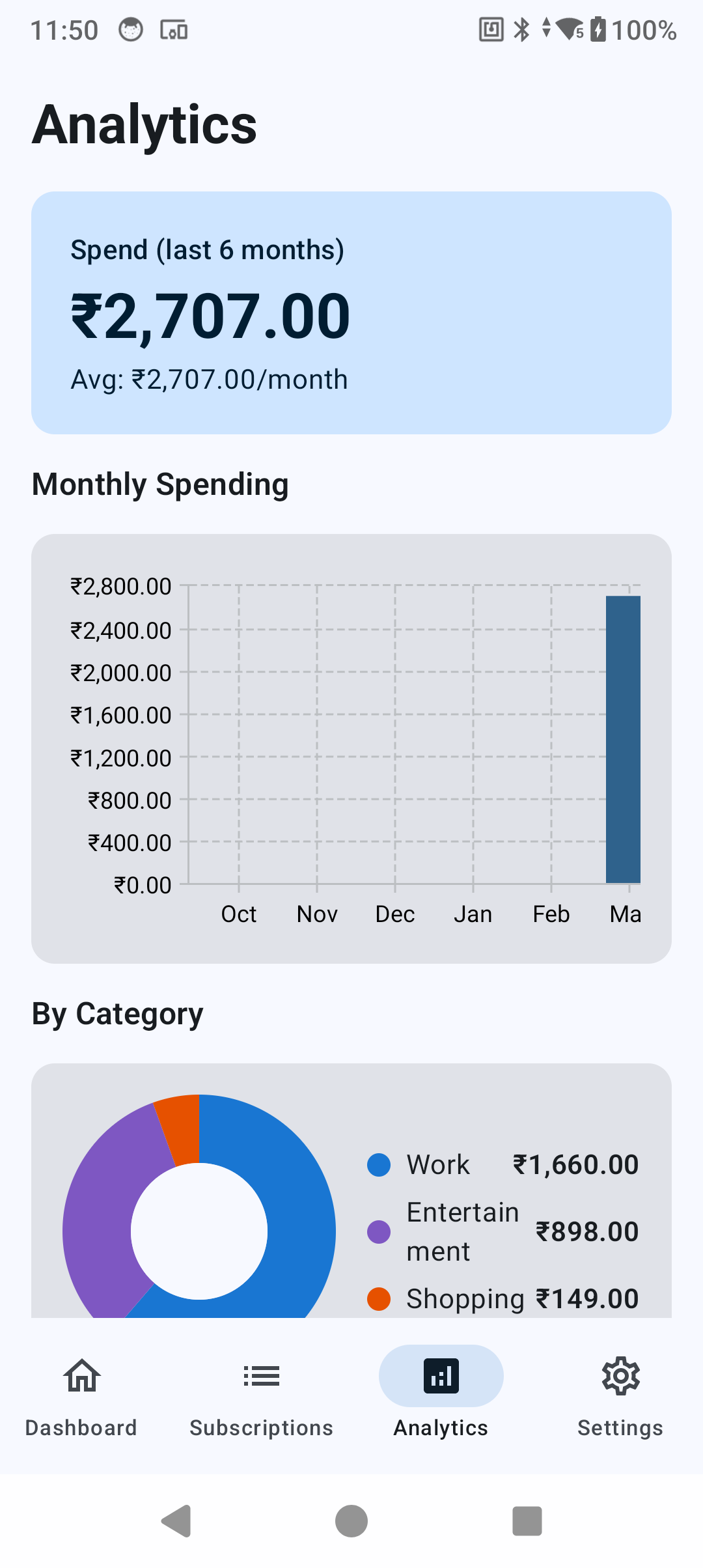
The Analytics tab gives you a clear picture of your subscription spending:
- Monthly bar chart — spending trends over the last 6 months
- Category donut chart — where your money goes by category
- Total and average cards — monthly average and total active subscriptions
Premium users get advanced analytics including year-over-year comparisons and category trends.
9. Data & Privacy
SubSense stores all your data locally on your device using Android's Room database. No subscription data is ever sent to any server.
Exporting your data
Go to Settings > Export Datato export your subscriptions as CSV or JSON files. You can share these via Android's share sheet.
Deleting your data
Go to Settings > Clear All Data to permanently erase all locally stored data. Uninstalling the app also removes all data from your device.
For full details, read our Privacy Policy.
10. Troubleshooting
Subscriptions not being detected?
- Verify Notification Access is enabled: Settings > Apps > Special access > Notification access
- Check battery optimization is disabled for SubSense
- On Xiaomi/MIUI: enable Auto-start and lock the app in recent apps
- Note: services that only send email billing (not push notifications) cannot be auto-detected
Widget not updating?
- The widget updates every 6 hours automatically
- Ensure SubSense is not being killed by your device's battery manager
- Try removing and re-adding the widget
App seems slow or unresponsive?
- Try clearing the app cache: Settings > Apps > SubSense > Storage > Clear Cache
- Ensure you're running the latest version from Google Play
11. Contact Support
Need help? We're here for you.
- Email: support@akshantech.com
- Google Play: SubSense on Google Play
We typically respond within 24 hours.